How to Automate Bank Statement Processing for Tax Season
Save hundreds of hours during tax season. Learn how to automate bank statement PDF conversion with batch upload and API tools. Three levels of automation explained.
Tax season means bank statements — a lot of them. If you're a tax preparer or accountant handling 30 or more clients, you already know the drill: each client hands you a stack of PDF bank statements, and you need that transaction data in your accounting software before you can do any real work.
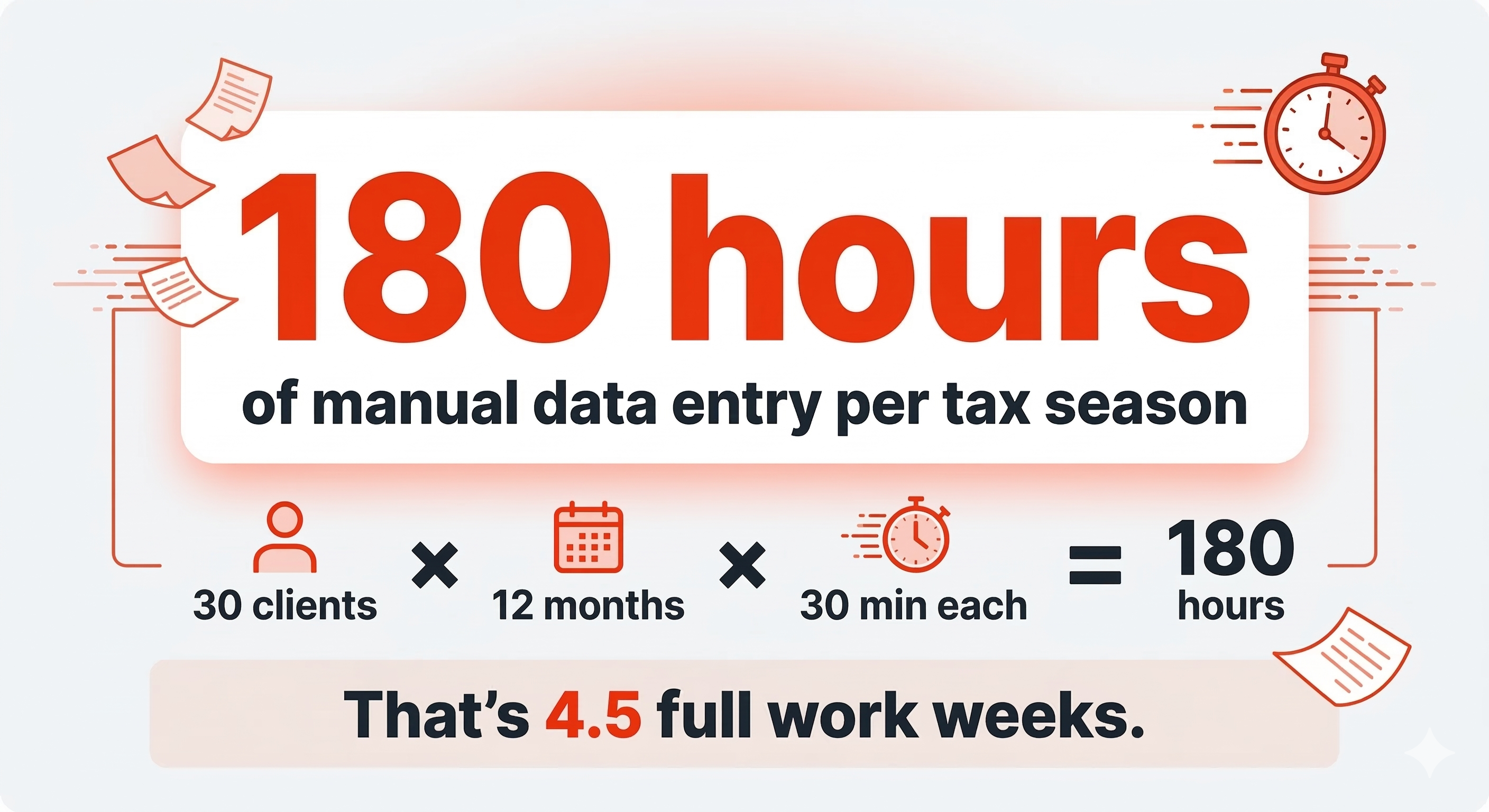
Manually entering transactions from a PDF into a spreadsheet or QuickBooks takes 15–45 minutes per statement. Multiply that by 12 months per client, multiply again by 30 clients, and you're looking at hundreds of hours of data entry during your busiest time of year.
It doesn't have to work that way. You can automate most of the bank statement processing pipeline — from PDF conversion to accounting software import — and reclaim that time for actual tax preparation work.
To automate bank statement processing for tax season, use a batch converter like BankConv to convert multiple client PDF statements to CSV or OFX at once, then import the structured data directly into your accounting software. For full automation, BankConv's API lets you build a processing pipeline that converts statements programmatically without manual uploads.
The Manual Processing Problem
Here's what manual bank statement processing looks like during tax season for a small firm with 30 clients:
Each client provides 12 monthly statements (sometimes more if they have multiple accounts). That's 360 or more PDF files. For each statement, someone on your team opens the PDF, reads the transactions, and types them into a spreadsheet or directly into accounting software. A single statement with 50 transactions takes around 30 minutes if you're careful — and mistakes happen more often as the deadline pressure builds.
The math is rough. At 30 minutes per statement and 360 statements, that's 180 hours of pure data entry — more than four 40-hour work weeks. And that's before you've categorized a single transaction, prepared a single return, or had a single client conversation.
The error rate compounds the problem. Manual data entry introduces typos in amounts, transposed digits, skipped transactions, and misread dates. One wrong number can throw off a reconciliation and cost an additional hour to track down. During tax season, when you're tired and rushing, errors become more frequent.
This is the bottleneck that automation eliminates.
Three Levels of Automation
Not every firm needs a fully automated API pipeline. Bank statement processing automation comes in three levels, and you can start with the simplest one today and scale up later.
Level 1: One-at-a-time conversion. Upload a single PDF, get a CSV or Excel file back. This replaces manual data entry entirely for each statement. Best for solo preparers handling fewer than 10 clients.
Level 2: Batch conversion. Upload multiple PDFs at once, convert them all in a single batch. Eliminates the repetitive upload-download cycle. Best for small firms handling 10–50 clients.
Level 3: API-driven automation. Programmatically send PDFs to a conversion API and receive structured data back. Build it into your existing workflow tools. Best for larger firms, accounting platforms, and developers building custom solutions.
Each level builds on the previous one. Let's walk through all three.
Level 1 — Convert Statements One at a Time
This is the simplest starting point and the one most tax preparers begin with.
Go to BankConv's free PDF-to-CSV converter, upload a client's bank statement PDF, choose your output format (CSV for spreadsheets, OFX for QuickBooks import), and download the converted file. The conversion takes seconds.
What used to be 30 minutes of manual data entry becomes a 30-second upload-and-download. For a solo tax preparer handling 5–10 clients, this alone saves dozens of hours during filing season.
You can convert statements from any bank — BankConv supports 1000+ banks worldwide, including all major US banks like Chase and Wells Fargo, as well as Indian banks like SBI and HDFC. Password-protected PDFs work too — just enter the password when prompted.
Level 2 — Batch Convert Multiple Statements
When you're dealing with dozens of clients, uploading statements one by one is still tedious. Batch conversion solves this.
BankConv's bulk upload feature lets you upload multiple bank statement PDFs at once and convert them in a single batch. Drop in 20 files, pick your output format, and download all 20 converted files together.
Here's a practical tax season workflow using batch conversion:
Step 1: Collect. Create a folder for each client. As statements come in (via email, client portal, or in person), save the PDFs to the right client folder.
Step 2: Batch convert. Once you have a client's statements gathered, upload the full set to BankConv. Convert them all to CSV or OFX in one batch.
Step 3: Import. Bring the converted files into your accounting software — QuickBooks, Xero, Tally, or whatever your firm uses. OFX files import cleanly through QuickBooks Web Connect with no column mapping needed.
Step 4: Reconcile and categorize. With the transaction data in your software, run your reconciliation and categorize transactions. This is the part that actually requires your expertise — everything before it was just data logistics.
For a firm handling 30 clients with 12 statements each, batch conversion turns days of data entry into an afternoon of organized uploading and importing.
Level 3 — API-Driven Automation
For larger operations or tech-savvy firms, BankConv's REST API takes the manual steps out entirely. You send a PDF programmatically, and the API returns structured transaction data — no browser, no manual uploads, no downloads.
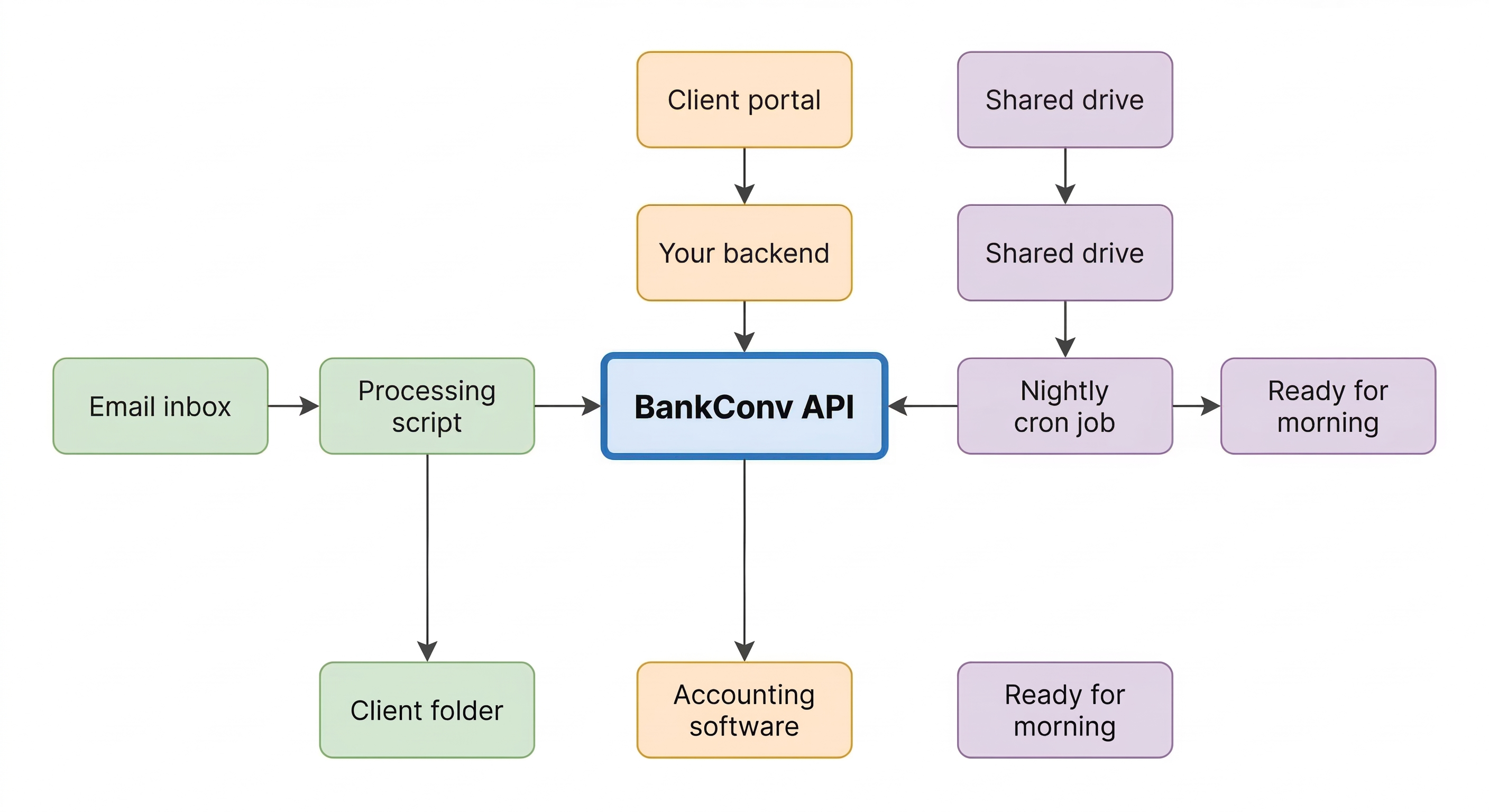
This is where statement processing becomes truly automated. Here are a few ways firms use the API:
Email-to-spreadsheet pipeline. Set up a workflow where client emails with PDF attachments are automatically forwarded to a processing script. The script sends each PDF to BankConv's API, gets back structured CSV data, and saves it to the right client folder or uploads it to a shared drive.
Accounting platform integration. If your firm uses a custom portal or practice management system, you can integrate statement conversion directly. Clients upload their PDFs through your portal, and the system converts and imports the data without anyone touching a file manually.
Scheduled batch processing. Run a nightly script that scans an inbox or shared folder for new PDF statements, converts them via the API, and places the structured files where your team expects to find them the next morning.
The API accepts the same 1000+ bank formats as the web tool and handles password-protected PDFs. It returns data in CSV, JSON, OFX, or Excel format — whatever fits your downstream workflow.
Building Your Tax Season Statement Workflow
Regardless of which automation level you choose, the overall workflow follows the same pattern. Here's a practical setup that works for most tax preparation firms:
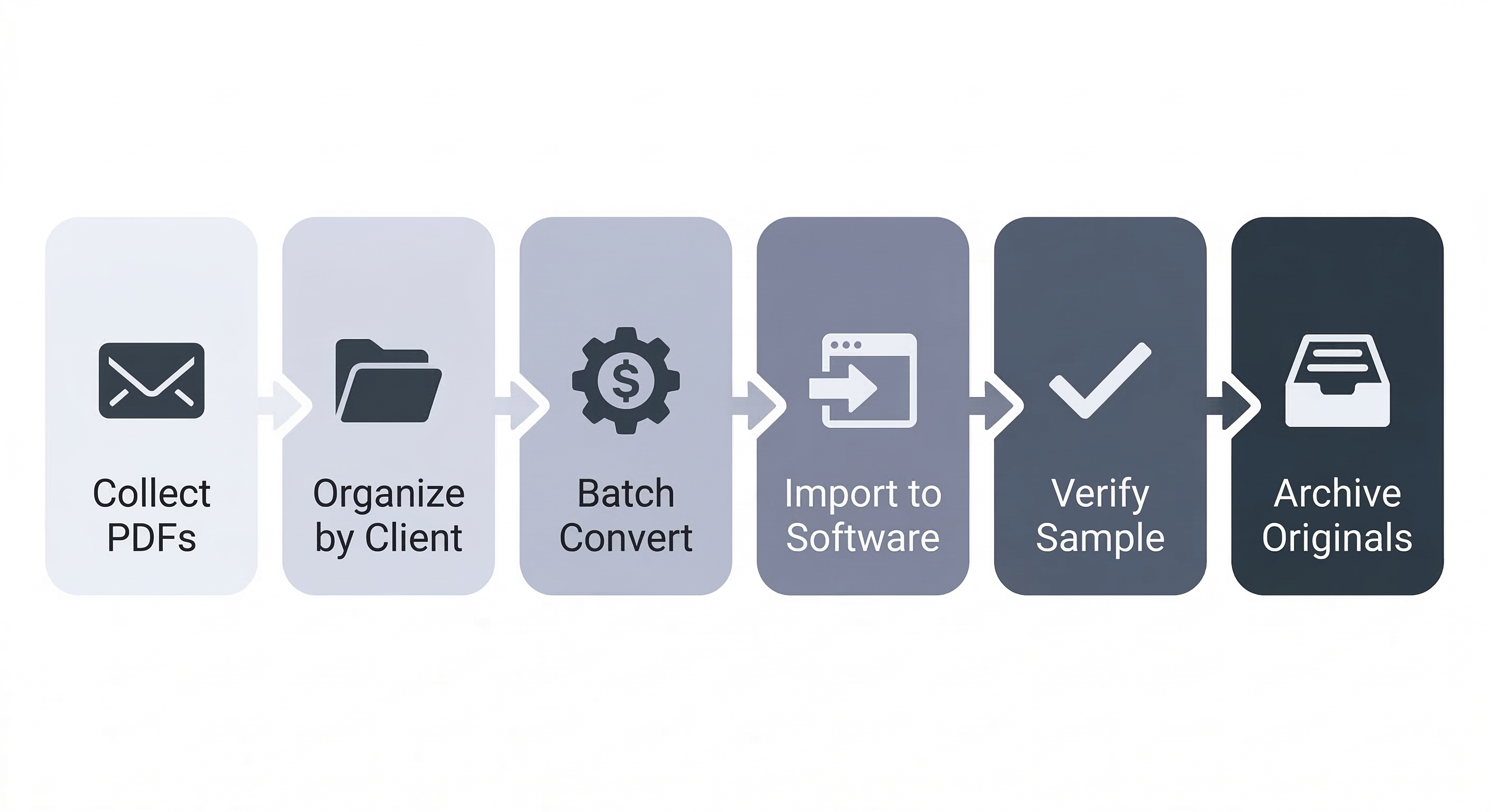
1. Standardize how clients send statements. Create a simple instruction sheet for clients: download PDF statements from their bank's online portal (not screenshots, not scanned paper statements), and send them via your secure client portal or encrypted email. Digital PDFs convert far more accurately than scanned documents.
2. Organize before converting. Set up a consistent folder structure — one folder per client, subfolders by account or year. This seems basic, but it prevents the chaos of processing 300+ files with ambiguous names.
3. Convert in batches by client. Convert all of one client's statements at once rather than mixing clients. This keeps the files organized and makes it easier to verify that nothing was missed.
4. Import into accounting software. Use OFX for QuickBooks, CSV for Tally or custom spreadsheets. If your firm handles both US and Indian clients, you'll likely use a mix — OFX for QuickBooks clients, CSV for Tally clients.
5. Verify a sample. After importing, spot-check a few statements per client. Compare the opening balance, closing balance, and a handful of transaction amounts against the original PDF. With a reliable converter, this is usually a quick sanity check rather than a line-by-line audit.
6. Archive the originals. Keep the original PDF statements alongside the converted files. You may need them for audit support or client queries later.
This workflow scales from 10 clients to 100+. The only thing that changes is whether you're using the free tool, batch upload, or API — the process stays the same.