How to Convert Chase Bank Statements to CSV (3 Easy Steps)
Convert Chase bank statement PDFs to CSV in 3 steps. Free tool, no signup. Works with checking, savings, and credit card statements.
Chase is the largest bank in the United States, with over 80 million consumer accounts. If you're one of them, you've probably downloaded a bank statement as a PDF — and then realized you need that transaction data in a spreadsheet.
Whether you're a bookkeeper reconciling client accounts, a small business owner tracking expenses, or just trying to get your transactions into Excel or Google Sheets, converting a Chase PDF statement to CSV doesn't have to mean hours of copy-pasting. This tutorial walks you through the fastest way to do it, step by step.
What You'll Need
- Your Chase bank statement in PDF format (downloaded from Chase Online or the Chase mobile app)
- A bank statement converter — we'll use BankConv's free PDF to CSV tool, which works with Chase statements out of the box
That's it. No software to install, no account required for the free tool.
Step 1: Download Your Chase Statement PDF
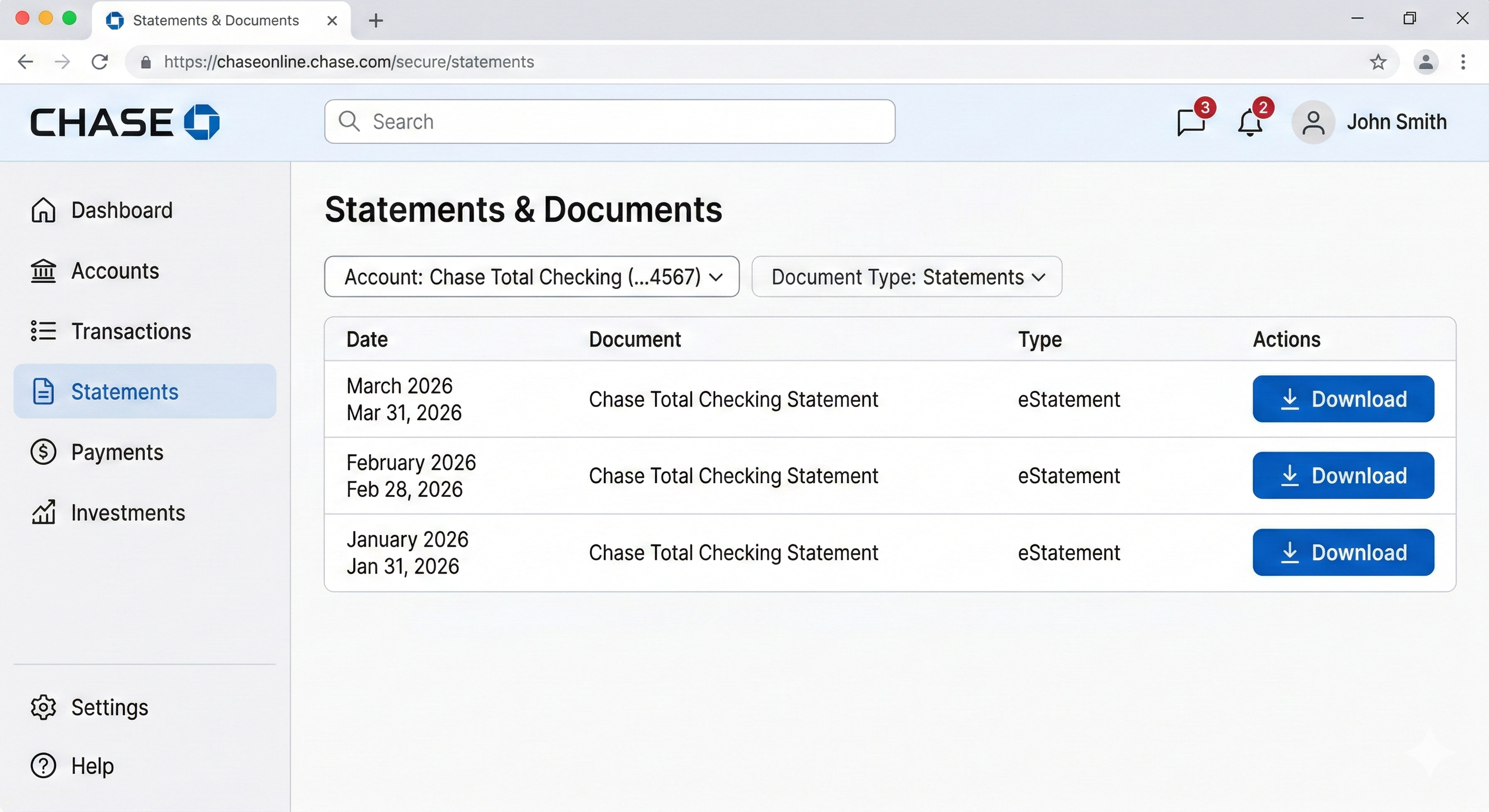
If you already have your statement PDF, skip to Step 2. Otherwise, here's how to get it from Chase:
From Chase Online (desktop):
- Log in at chase.com
- Select the account (checking, savings, or credit card)
- Click "Statements" in the left sidebar
- Find the statement period you need and click the download icon
- Save the PDF to your computer
From the Chase Mobile App:
- Open the Chase app and select your account
- Tap "Statements & documents"
- Select the statement period
- Tap "Download" or "Share" to save the PDF
Tips:
- Chase statements typically cover one calendar month. If you need a custom date range, use the "Download transactions" option instead — though this gives you limited formats and may not include all the detail a full statement provides.
- If your statement is password-protected, don't worry. BankConv handles password-protected PDFs — just enter the password when prompted during upload.
Step 2: Upload to BankConv
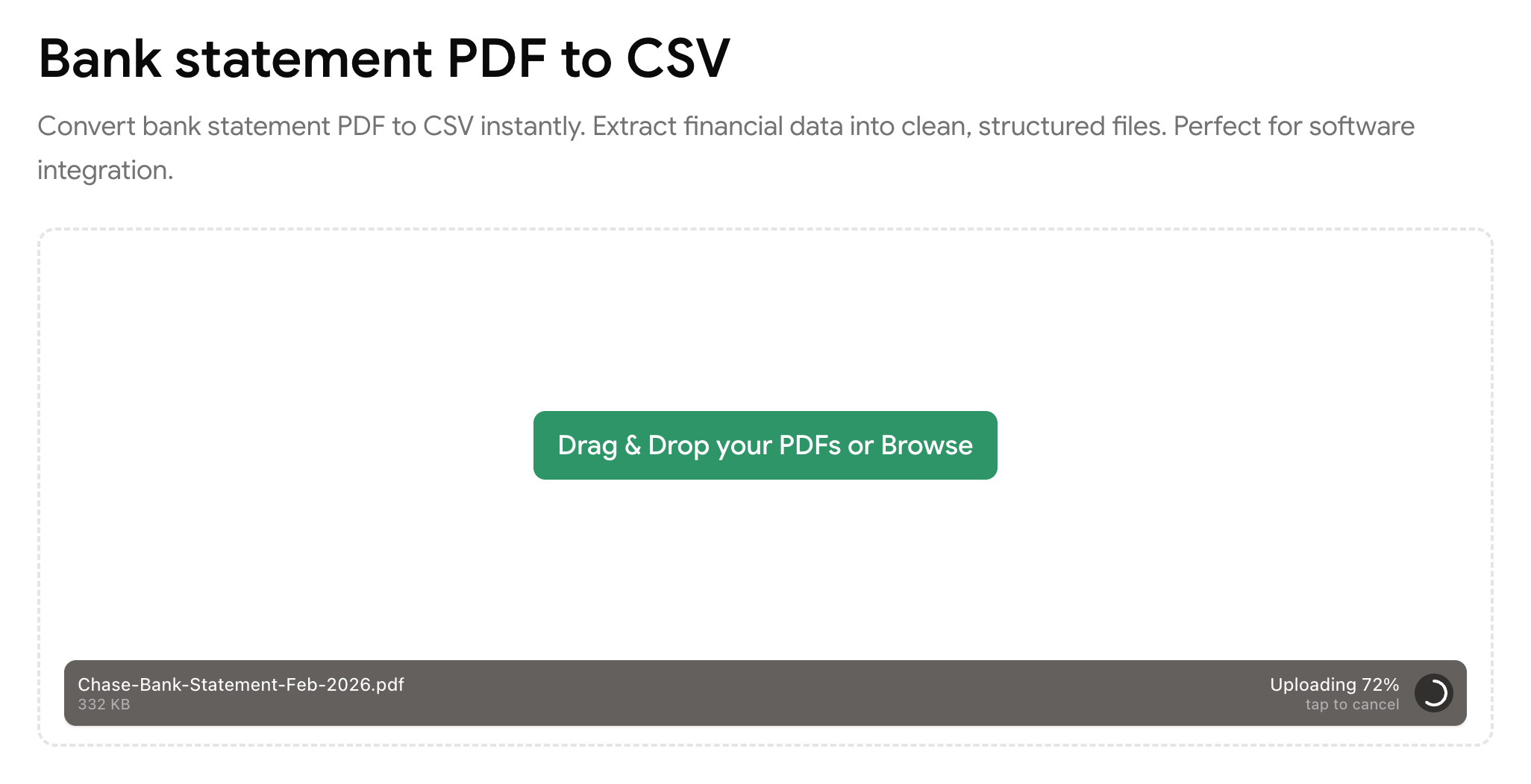
- Go to BankConv's free bank statement PDF to CSV converter
- Drag and drop your Chase statement PDF into the upload area — or click to browse your files
- If the PDF is password-protected, enter the password when prompted
- Select CSV as your output format (you can also choose Excel, OFX, or Google Sheets if you prefer)
- Click Convert
BankConv reads the transaction data from your Chase statement — dates, descriptions, amounts, and running balances — and structures it into clean, organized rows. The conversion typically takes under 30 seconds, even for multi-page statements.
Step 3: Download Your CSV File
Once the conversion is complete:
- Preview the extracted data to make sure everything looks right — check that transaction dates, descriptions, and amounts match your original statement
- Click Download CSV
- Open the file in Excel, Google Sheets, or any spreadsheet application
Your Chase transactions are now in a structured CSV format, ready to use. Each row contains one transaction with columns for date, description, amount, and balance.
Tips for Converting Chase Statements
Checking vs. savings vs. credit card statements: BankConv works with all Chase account types. Credit card statements have a slightly different layout than checking or savings statements, but the converter handles both formats automatically.
Multi-page statements: If your Chase statement runs to several pages (common for business accounts or months with heavy activity), BankConv processes all pages in a single upload. You don't need to split the PDF first.
Multiple statements at once: Need to convert several months of Chase statements? You can upload multiple files in one batch instead of converting them one at a time. This is especially useful during tax season or when onboarding a new bookkeeping client.
Business accounts: Chase business checking and business credit card statements work the same way. The converter picks up the transaction table regardless of the account type.
What You Can Do with Your Converted Chase Data
Once your Chase transactions are in CSV format, the possibilities open up:
Import into accounting software: Bring your transactions directly into QuickBooks, Xero, FreshBooks, or Wave. CSV is universally supported. If your software prefers OFX or QFX format, BankConv can export to those formats too — just select a different output in Step 2.
Reconcile accounts: Match your Chase transactions against your bookkeeping records. Having the data in a spreadsheet makes it easy to sort by date, filter by amount, and spot discrepancies.
Prepare for taxes: Categorize business expenses, identify deductible transactions, and organize your financial records for your accountant or tax preparer. A clean spreadsheet beats flipping through PDF pages.
Track personal spending: Import into Google Sheets or Excel and build your own budget tracker. Sort by description to see where your money goes, or create pivot tables to break down spending by category.
Convert More Bank Statements
Chase isn't the only bank BankConv supports. If you work with statements from multiple banks, you can convert them all the same way:
Or start with the complete guide to converting PDF bank statements to CSV for a full overview of methods and tools.
Ready to convert your Chase statement? Try the free converter now — upload your PDF and get a clean CSV in seconds.