Convert bank statements inside Google Sheets
BankConv for Google Sheets is a free add-on that turns a PDF bank statement into transactions without leaving your spreadsheet. Open it from the Extensions menu, drop in the PDF, and the transactions land in a new tab: one row each with date, description, amount and balance, as real dates and numbers. It signs you in with your Google account.
Install and convert
- Open the BankConv listing on the Google Workspace Marketplace, click Install, pick your Google account and allow the permissions (explained below).
- In any Google Sheet, go to Extensions → BankConv for Google Sheets → Convert bank statement. The sidebar opens on the right.
- The sidebar looks for a BankConv account with your Google email and signs you in. No account yet? Click Create free account with Google. Using a different email, or does your account use two-factor sign-in? Click I already have an account and approve the connection.
- Drop the statement PDF into the sidebar, or click browse (up to 30 MB).
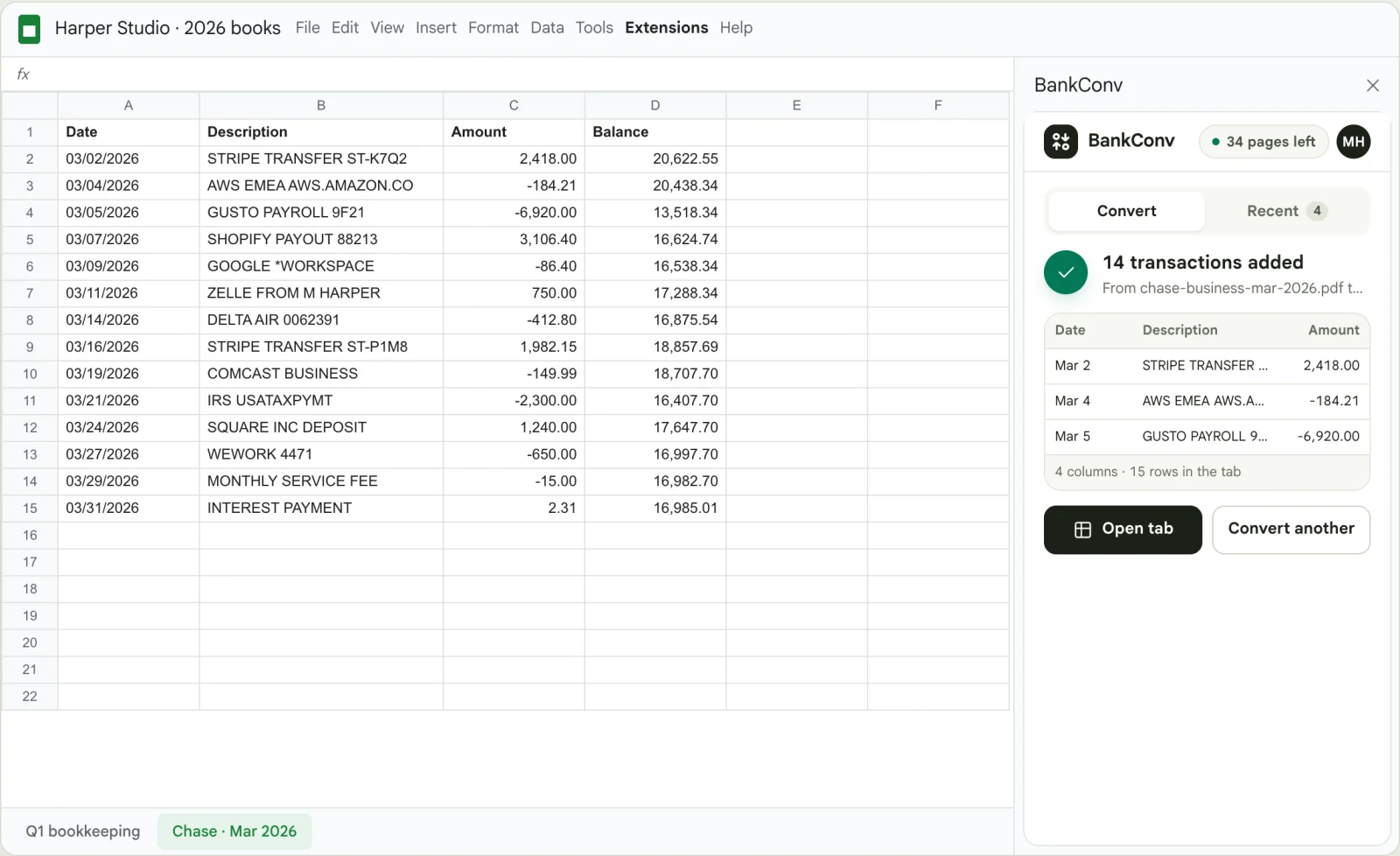
- Click Convert to sheet. The sidebar shows the upload, the reading and the new tab, then says how many transactions it added.
What lands in the sheet
Each statement becomes a new tab named after the bank and period, for example Chase · Mar 2026. The header row is frozen, and the columns are Date, Description, Reference, Amount and Balance. Reference and Balance only appear when the statement prints them.
This is the start of our sample statement (sample data, Harbor & Pine Bank, Sep 1 – Sep 30, 2026) as the add-on inserts it:
| Date | Description | Amount | Balance |
|---|---|---|---|
| 09/01/2026 | Card purchase · Adobe Creative Cloud | -59.99 | 8,352.38 |
| 09/02/2026 | Stripe transfer · ST-7Q2KX | 2,486.50 | 10,838.88 |
| 09/03/2026 | ACH debit · Gusto payroll | -4,120.00 | 6,718.88 |
| 09/05/2026 | Check 1043 | -1,850.00 | 4,868.88 |
| 09/09/2026 | Card purchase · AWS EMEA | -218.77 | 4,650.11 |
- Real dates. Dates are date values, shown as MM/DD/YYYY in a US-English spreadsheet and YYYY-MM-DD in every other locale, so sorting and date filters work.
- Signed amounts. Money in is positive and money out is negative, in one Amount column, as numbers, so a
SUMof the Amount column gives the net change for the period. - Transactions only. Opening balances, totals and page headers are left out. Tick Include everything on the statement before converting to also add the account details and summary tables, exactly as printed.
For formulas to try on the result, such as totals by month with QUERY, see bank statement to Google Sheets.
Password-protected PDFs
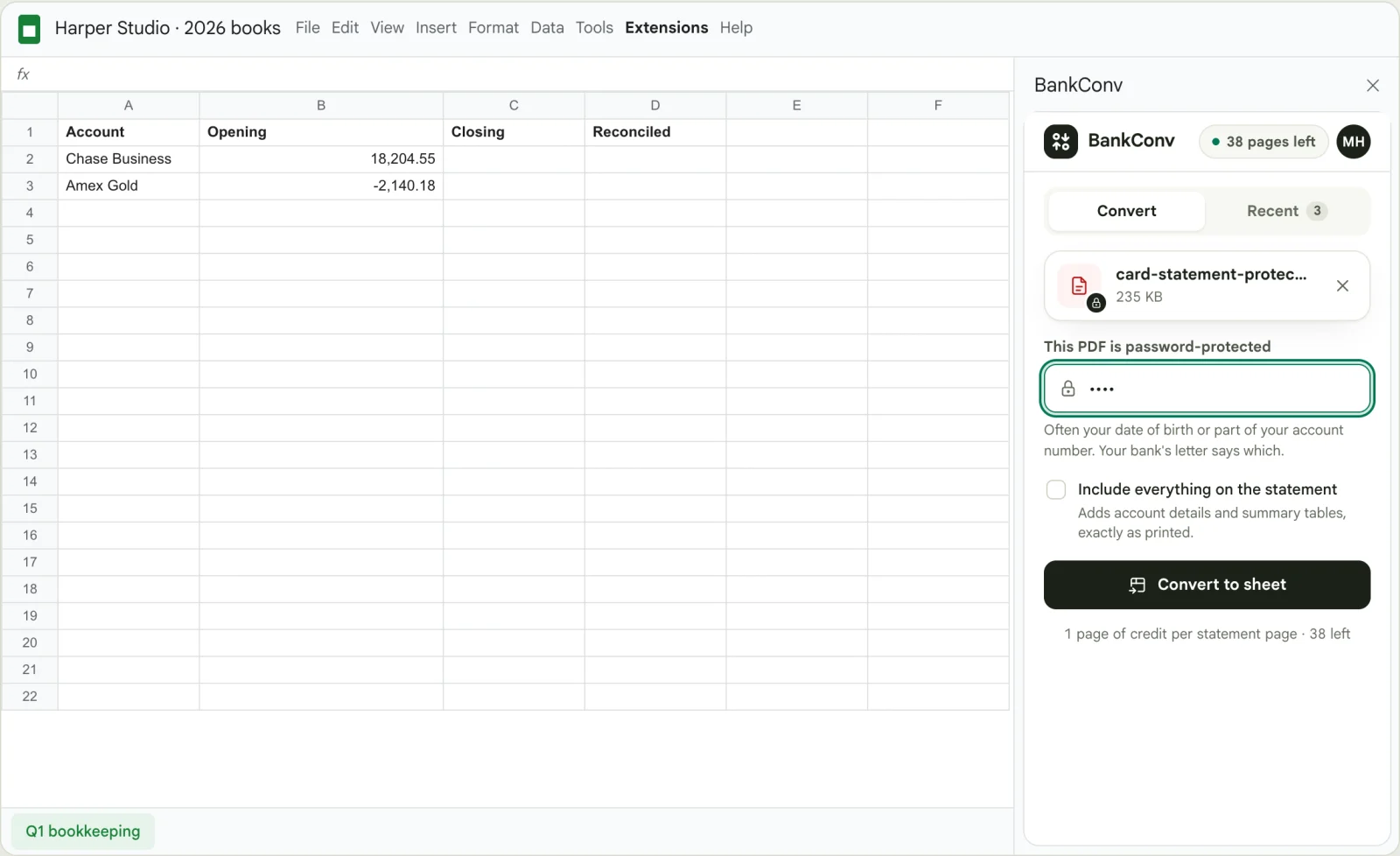
When the PDF has a password, the sidebar asks for it before converting. Banks often use your date of birth or part of your account number; the letter or email that came with the statement says which.
Earlier conversions
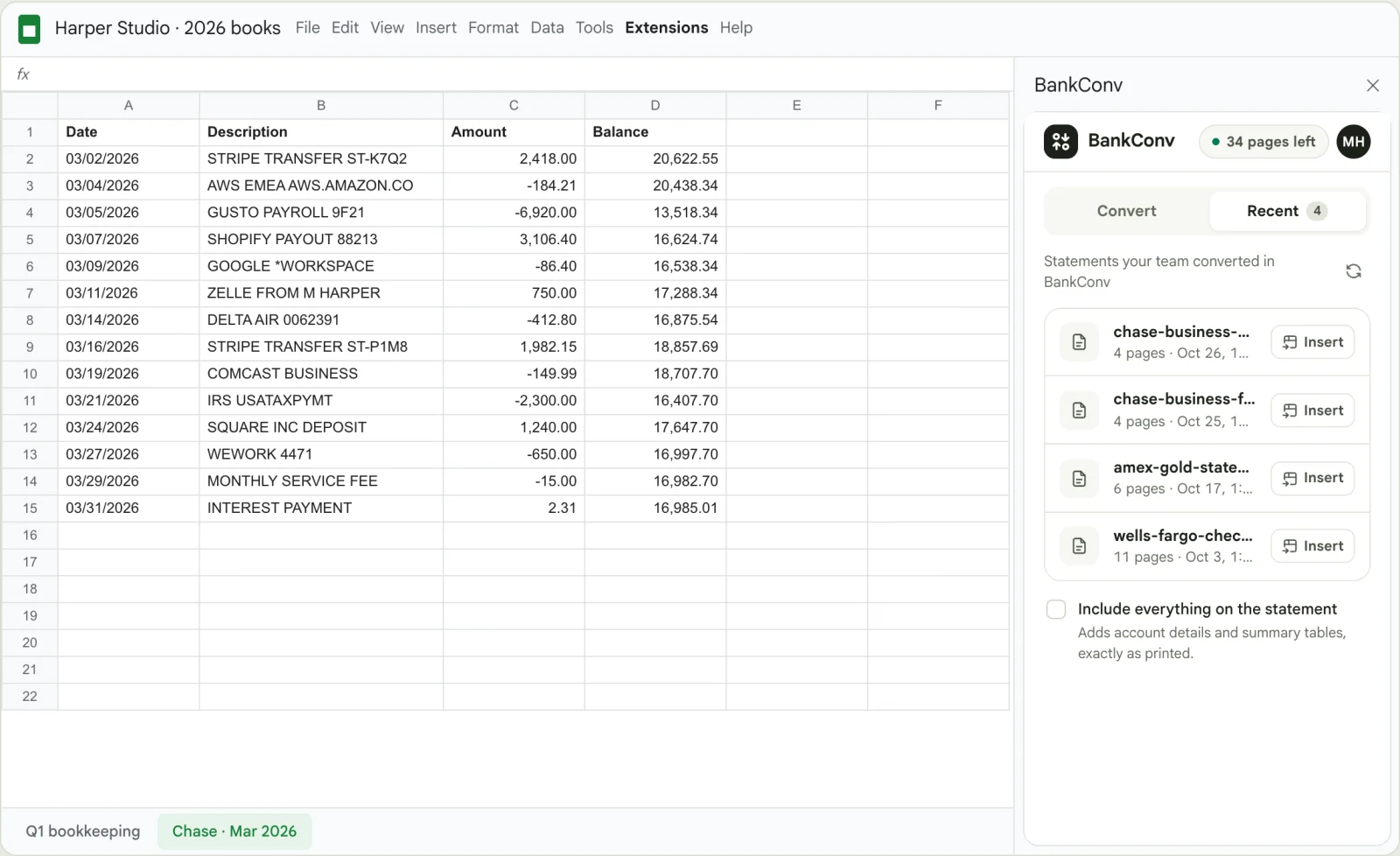
The Recent tab lists the last 10 statements your BankConv team converted, from the add-on, the website or the API, until their files expire. Click Insert to add one to the spreadsheet you have open, without converting it again.
What it costs
The add-on is free to install. Converting uses your BankConv pages, the same as on the website: each PDF page uses one page, and the sidebar shows how many you have left. A new account's first statement converts free, up to 5 pages. After that, buy a single statement or choose a monthly plan; see pricing. Inserting an earlier conversion from Recent uses no pages.
Permissions
Google shows these permissions when you install the add-on. This is what each one is for:
| Google asks to | Why BankConv needs it |
|---|---|
| View and manage spreadsheets that this application has been installed in | To add the transactions as a new tab in the spreadsheet you have open. It can’t open your other spreadsheets or Drive files. |
| Display and run third-party web content in prompts and sidebars inside Google applications | To show the BankConv sidebar. |
| Connect to an external service | To send the PDF to BankConv and get the transactions back. |
| View and manage data associated with the application | To remember your BankConv connection, so you sign in once. |
| See your primary Google Account email address | To find the BankConv account that uses your Google email. |
| Associate you with your personal info on Google | To sign you in to BankConv with your Google account. |
The PDF goes from your browser straight to BankConv over HTTPS. See security and data handling. To disconnect, click your initials in the sidebar and choose Disconnect, or remove the add-on under Extensions → Add-ons → Manage add-ons.
Add-on or website?
Both convert the same way and use the same pages. Use the add-on when the statement belongs in a spreadsheet you already work in, such as monthly bookkeeping or a rent ledger. Use the converter on the website to check the rows next to the PDF first, to convert several PDFs at once, or to download Excel, CSV, QBO, OFX or QFX instead.
Google Sheets add-on questions
Is the BankConv add-on free?
Installing it is free. Converting uses your BankConv pages, one per PDF page, the same as on the website. A new account's first statement converts free, up to 5 pages; after that, buy a single statement or choose a plan on the pricing page.
Do I need a BankConv account?
Yes, but you can create it from the sidebar with your Google account in one click. If your Google email already has a BankConv account, the sidebar usually signs you in on its own. If that account uses two-factor sign-in, click I already have an account and approve the connection on the website instead.
Can it read scanned or password-protected statements?
Yes. Scanned statements are read with OCR, as on the website. For a protected PDF, the sidebar asks for the password your bank set before converting.
Does it change my existing tabs?
No. Every conversion goes into a new tab named after the bank and the statement period. Your other tabs are left alone.
Can it read my other Google Drive files?
No. Google only lets the add-on see and edit the spreadsheet it was opened in. The PDF you pick comes from your computer, not from Drive.
What if BankConv can’t read the statement as transactions?
The add-on inserts every table on the statement as printed instead, so you still get the data in the sheet, and you can tidy it there.