How to do a bank reconciliation in Excel
Put the bank statement and your cash book on separate Excel sheets, match rows by amount with COUNTIFS, and label every row that doesn't match. Add deposits in transit and subtract outstanding checks on the bank side; apply bank fees, interest and corrections on the book side. You're done when both adjusted balances are equal.
Updated
What you need before you start
You need three things for the month you’re reconciling:
- The bank statement as a spreadsheet. If you only have a PDF, convert the bank statement to Excel. BankConv’s Excel and CSV files use the columns Date, Description, Reference, Amount and Balance.
- Your cash book or ledger for the bank account, exported to Excel.
- Last month’s reconciliation, for any deposits in transit and outstanding checks that were still open.
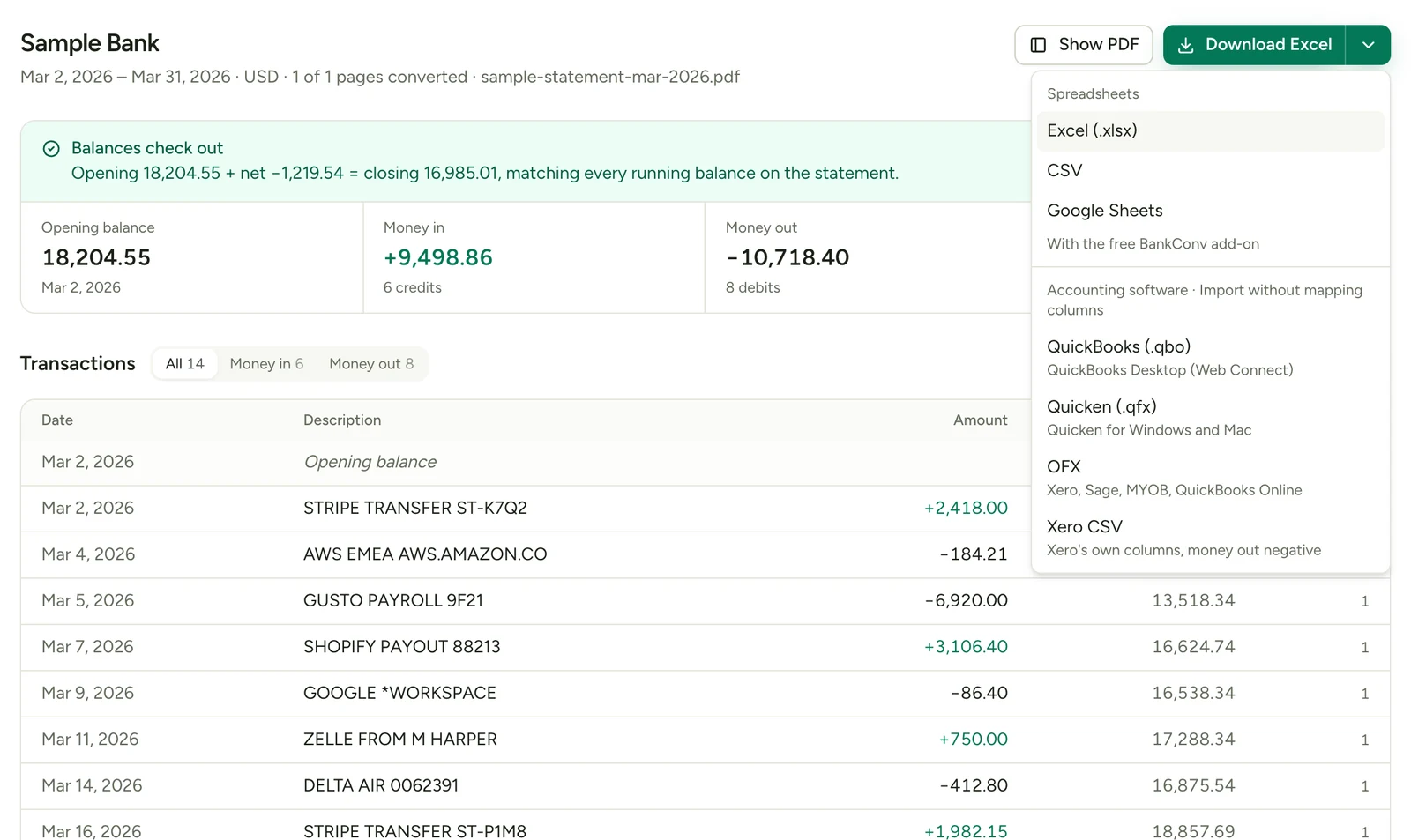
Check the converted statement before you match anything: the opening balance plus all the amounts should equal the closing balance on the PDF. When BankConv can compare them, the results page tells you whether the balances check out or warns you that they don’t.
US statements often print checks and fees in their own tables, away from the other transactions. BankConv adds those tables to the transaction list only when the result matches the statement’s printed balances to the cent. If a statement still comes up short, look for these tables first.
Step 1: Put each side on its own sheet
Create a workbook with three sheets named Bank, Books and Reconciliation. Paste the statement into Bank and the cash book into Books, with headers in row 1 and the amount in column D on both sheets.
Both sheets must use the same sign: money into the account is positive and money out is negative. Ledgers often show the opposite of the bank’s wording, because a deposit is a credit on the statement and a debit in your books. If your export has separate debit and credit columns, add one signed Amount column first.
This example, with sample data, runs through the rest of the guide. It covers October 2026, and both sides opened at $8,000.00. Ref. is the Reference column.
Bank sheet
| Date | Description | Ref. | Amount | Balance |
|---|---|---|---|---|
| 10/02 | Deposit INV-1041 | 2,400.00 | 10,400.00 | |
| 10/05 | Check 1203 | 1203 | -650.00 | 9,750.00 |
| 10/09 | Rent ACH | -1,800.00 | 7,950.00 | |
| 10/14 | Deposit INV-1042 | 1,150.00 | 9,100.00 | |
| 10/16 | Fuel card | -45.00 | 9,055.00 | |
| 10/16 | Fuel card | -45.00 | 9,010.00 | |
| 10/21 | Check 1205 | 1205 | -540.00 | 8,470.00 |
| 10/30 | Monthly service fee | -25.00 | 8,445.00 | |
| 10/31 | Interest paid | 3.20 | 8,448.20 |
Books sheet
| Date | Description | Ref. | Amount |
|---|---|---|---|
| 10/02 | INV-1041 received | 2,400.00 | |
| 10/03 | Check 1203 | 1203 | -650.00 |
| 10/09 | October rent | -1,800.00 | |
| 10/14 | INV-1042 received | 1,150.00 | |
| 10/16 | Fuel | -45.00 | |
| 10/16 | Fuel | -45.00 | |
| 10/19 | Check 1205 | 1205 | -450.00 |
| 10/29 | Check 1207 | 1207 | -320.00 |
| 10/31 | INV-1043 received | 1,275.00 |
The books close at $9,515.00 and the statement at $8,448.20.
Step 2: Match the rows with COUNTIFS
Match on the amount, not the date. A check is recorded the day you write it and appears on the statement days later, so the dates rarely agree.
A plain amount match has a flaw: if you recorded one $45.00 fuel charge and the bank shows two, both bank rows would look matched. To prevent that, number each repeat of an amount, then match the amount and its number together.
On the Bank sheet, enter these in row 2 and fill them down. Column F is Nth and column G is Matched.
=COUNTIF($D$2:D2,D2)=IF(COUNTIFS(Books!$D:$D,D2,Books!$E:$E,F2)>0,"Yes","No")On the Books sheet, do the same. Column E is Nth and column F is Matched.
=COUNTIF($D$2:D2,D2)=IF(COUNTIFS(Bank!$D:$D,D2,Bank!$F:$F,E2)>0,"Yes","No")Now the first $45.00 on each sheet pairs with the other sheet’s first, and the second with the second. Filter both sheets to No. In the example, three rows are left on each side:
| Sheet | Unmatched row | Amount |
|---|---|---|
| Bank | Check 1205 | -540.00 |
| Bank | Monthly service fee | -25.00 |
| Bank | Interest paid | 3.20 |
| Books | Check 1205 | -450.00 |
| Books | Check 1207 | -320.00 |
| Books | INV-1043 received | 1,275.00 |
Matching on amount can pair the wrong rows when two checks are for the same amount. The total stays right, but you could list the wrong check as outstanding, so compare check numbers in the Reference column.
Step 3: Say why each row didn’t match
Add a Type column: column H on Bank and column G on Books. Give every unmatched row one of these labels.
| Type | Which sheet | What it means | Example above |
|---|---|---|---|
| Deposit in transit | Books | You recorded it; the bank hasn’t yet | INV-1043, deposited on the last day of the month |
| Outstanding check | Books | You wrote it; it hasn’t cleared | Check 1207 |
| Bank only | Bank | The bank recorded it; you haven’t yet | Service fee and interest |
| Error | Both | The same transaction with two different amounts | Check 1205 |
Confirm each label against something real. A deposit in transit should appear on the next statement within days, and a check should match your check register.
Check 1205 is the sort of mistake this process exists to catch: $540.00 on the statement, $450.00 in the books. The difference of $90.00 divides exactly by 9, which is the usual sign of two swapped digits.
Step 4: Build the reconciliation format
On the Reconciliation sheet, type the two balances from the statement and the cash book, then use these formulas. Put the line names in column A and the amounts in column B, in the rows shown.
| Row | Line | Column B | Example |
|---|---|---|---|
| 1 | Balance per bank statement | Type from PDF | 8,448.20 |
| 2 | Add: deposits in transit | Formula A | 1,275.00 |
| 3 | Less: outstanding checks | Formula B | -320.00 |
| 4 | Adjusted bank balance | =SUM(B1:B3) |
9,403.20 |
| 5 | Balance per books | Type from cash book | 9,515.00 |
| 6 | Bank-only items | Formula C | -21.80 |
| 7 | Corrections | Formula D | -90.00 |
| 8 | Adjusted book balance | =SUM(B5:B7) |
9,403.20 |
| 9 | Difference | =ROUND(B4-B8,2) |
0.00 |
Formula A, deposits in transit:
=SUMIFS(Books!$D:$D,Books!$G:$G,"Deposit in transit",Books!$F:$F,"No")Formula B, outstanding checks:
=SUMIFS(Books!$D:$D,Books!$G:$G,"Outstanding check",Books!$F:$F,"No")Formula C, bank-only items:
=SUMIFS(Bank!$D:$D,Bank!$H:$H,"Bank only")Formula D, corrections:
=SUMIFS(Bank!$D:$D,Bank!$H:$H,"Error")-SUMIFS(Books!$D:$D,Books!$G:$G,"Error")ROUND removes the tiny decimal residue Excel can leave when it adds cents, which would otherwise show a difference that isn’t real.
If the bank made the mistake, not you, add a line for it on the bank side and report it to the bank.
Don’t take a shortcut on Step 3
It’s tempting to skip the labels and add all the unmatched rows from each sheet to the opposite balance. That difference is always zero when both sides opened on the same balance, even with errors in the data, because every row has simply been counted on both sides.
The labels are what make the check work. In the example, leave Check 1205 unlabeled and the Difference line shows -90.00, pointing you straight to the problem. The all-unmatched shortcut shows 0.00 and hides it.
If the difference won’t clear
| What you see | Likely cause | What to do |
|---|---|---|
| Difference divides exactly by 9 | Swapped digits, such as 540 and 450 | Compare the unmatched rows’ digits |
| Difference is twice one row’s amount | A row has the wrong sign | Look for an unmatched row worth half the difference |
| Difference equals one row’s amount | A row is unlabeled or labeled on one side only | Filter Type for blanks among the No rows |
| Difference equals an item from last month | An outstanding item wasn’t carried forward | Add it to the Books sheet |
| A difference first appears this month, with clean rows | The opening balances don’t tie to last month | Compare with last month’s adjusted balance |
| Statement rows don’t add up to its closing balance | A row or page is missing from the statement data | Fix the Bank sheet before you reconcile |
Close the month
A zero difference means the two records agree, but your books aren’t finished yet.
- Post the book-side items. In the example, record the $25.00 fee and the $3.20 interest, and correct check 1205 by $90.00. The cash book then shows $9,403.20, the adjusted balance.
- Carry open items forward. Copy INV-1043 and check 1207 to the top of November’s Books sheet with their Type labels, so they can match when they clear. Formulas A and B count them only while Matched is No. Type November’s book balance from the cash book rather than summing the sheet, because these two rows are already included in it.
- Follow up old items. A check still open after a few months may be lost or uncashed. Ask the payee rather than carrying it indefinitely.
- Save the workbook. Keep the reconciliation with the statement as your audit trail for the month.
To catch up on several months, reconcile them one at a time, each with its own Bank and Books sheets and last month’s open items carried in. Filtering one combined table by month won’t work, because COUNTIF, COUNTIFS and SUMIFS still count hidden rows. If you use accounting software, it can do the matching once the statement is imported; see the steps for Xero or QuickBooks.
Sources: Microsoft Support: COUNTIFS function · Microsoft Support: COUNTIF function · Microsoft Support: SUMIFS function · AccountingCoach: Bank reconciliation